How to Make an AI Rap Video: Step-by-Step Guide
Learn how to make an AI rap video with screenshots: upload photos, choose a stage, set your format, add a topic, then generate and download.
You make an AI rap video in a web browser: upload photos of two people, choose a stage and a format, add a topic if you want one, and submit. There is nothing to install. What comes back is an MP4 of the pair rapping, with generated rap audio; this guide uses the default vertical 9:16 setting.
This guide uses our own tool, the AI Rap Duo studio. You need two photos, or one photo with both people in it, saved as JPG, PNG or WebP at up to 10 MB each. Use photos of people who have agreed to be in the video. Minors need a parent or guardian's consent.
Step 1: Open the Tool and Upload Your Photos
Open the studio on a computer or in your phone's browser. The first block has a switch with two modes. Two photos gives you two boxes, "You" and "Your duo", one person in each. One photo of both gives you a single box, "The two of you".
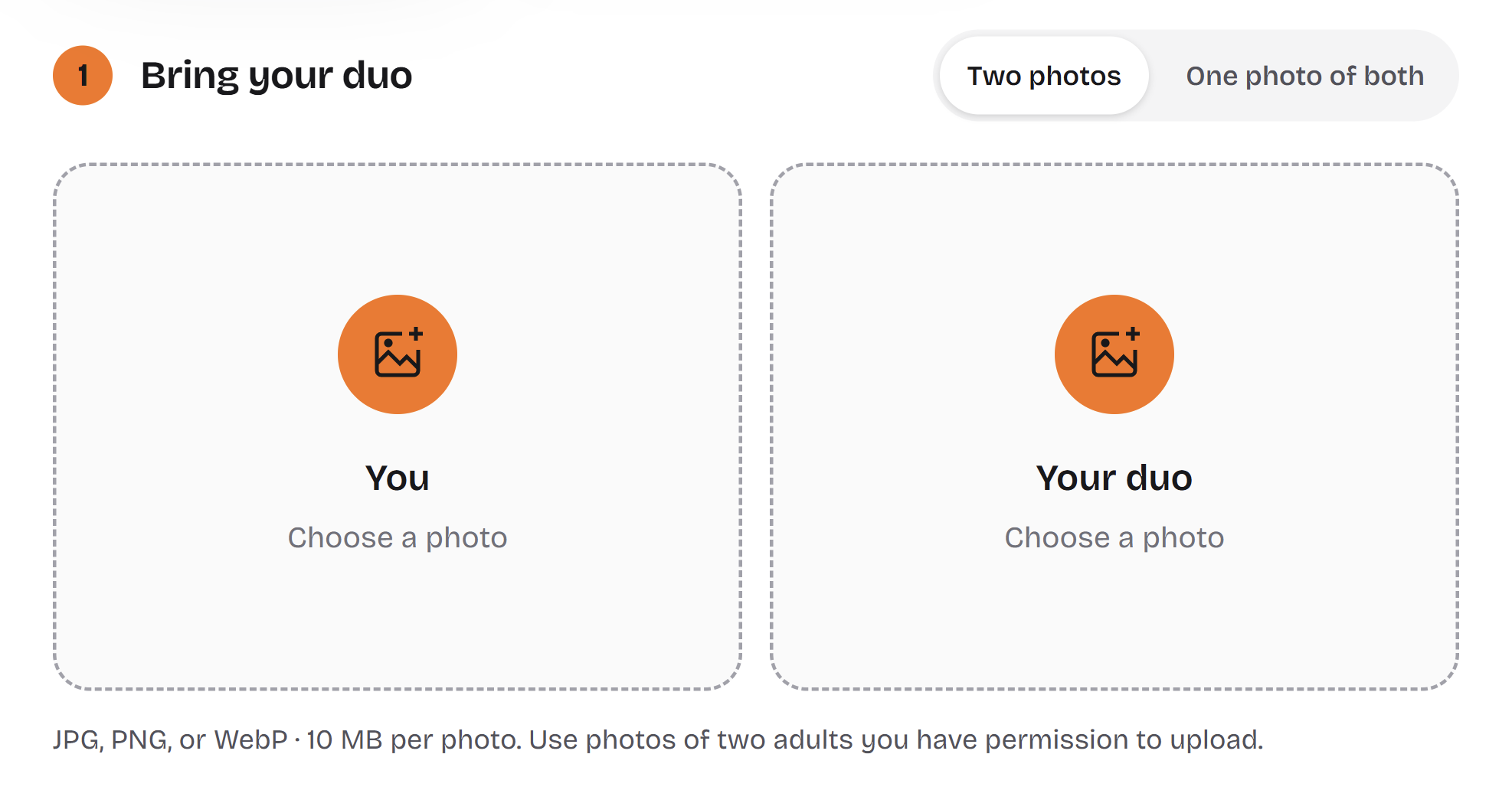
Click a box and choose a file. On a phone, the same tap opens your system photo picker. The box then shows the file name over a thumbnail of the image. To swap a photo, click the box again and pick another.
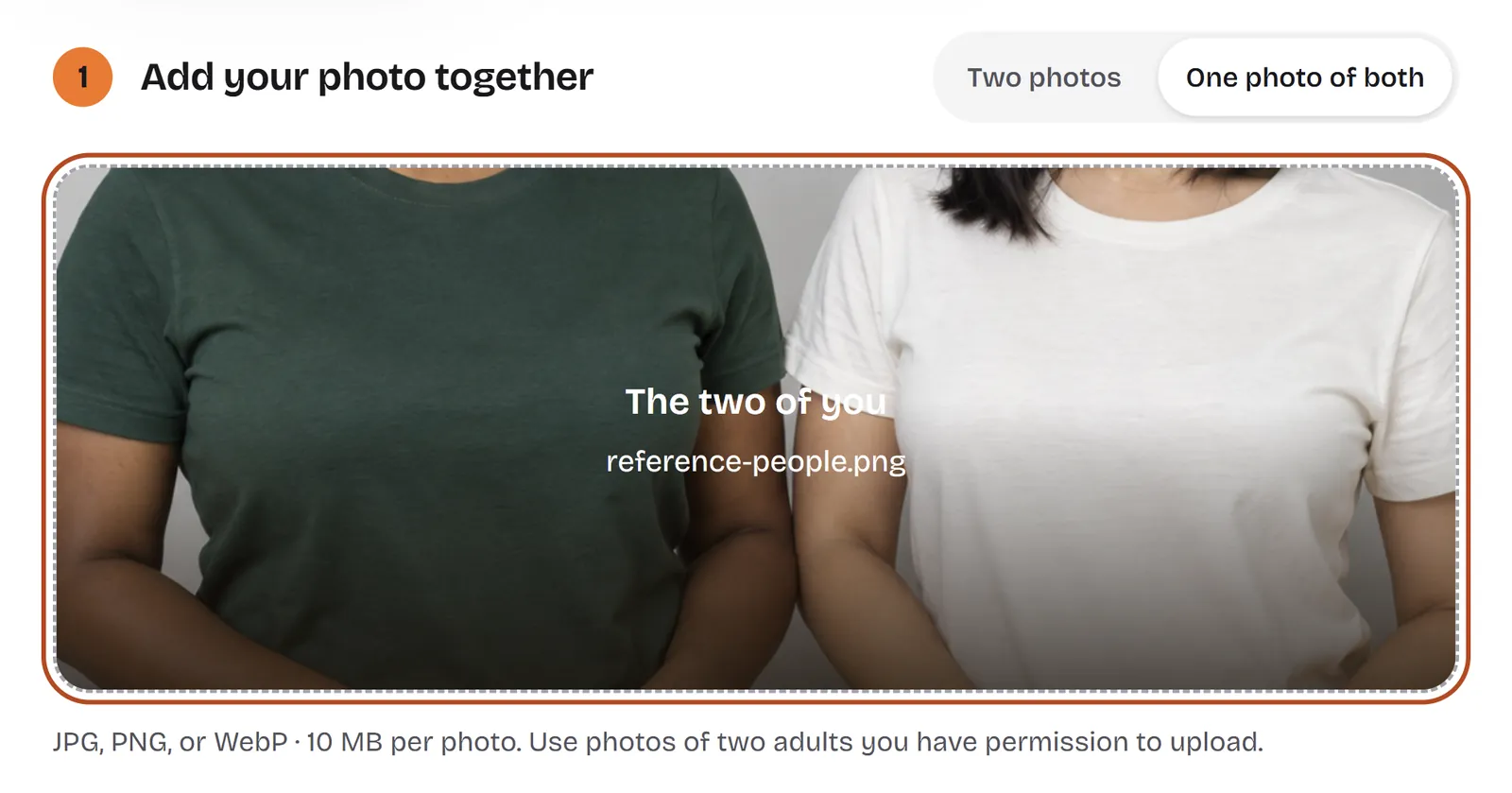
The photos matter more than any setting further down, because they are the only reference the video has for each face. Pick shots where the face is sharp, well lit and turned toward the camera. Skip sunglasses, heavy filters and anything that covers part of the face. Keep it to one face per person: no bystanders in a solo photo, and exactly two people in a shared one, with neither face tiny or cut off at the edge.
Step 2: Choose Your Stage
Under "Set your stage" there are two tiles: Hotel Lobby, marked with a plain orange swatch, and Recording Studio, marked with a dark studio thumbnail. Click one and a tick appears on it.
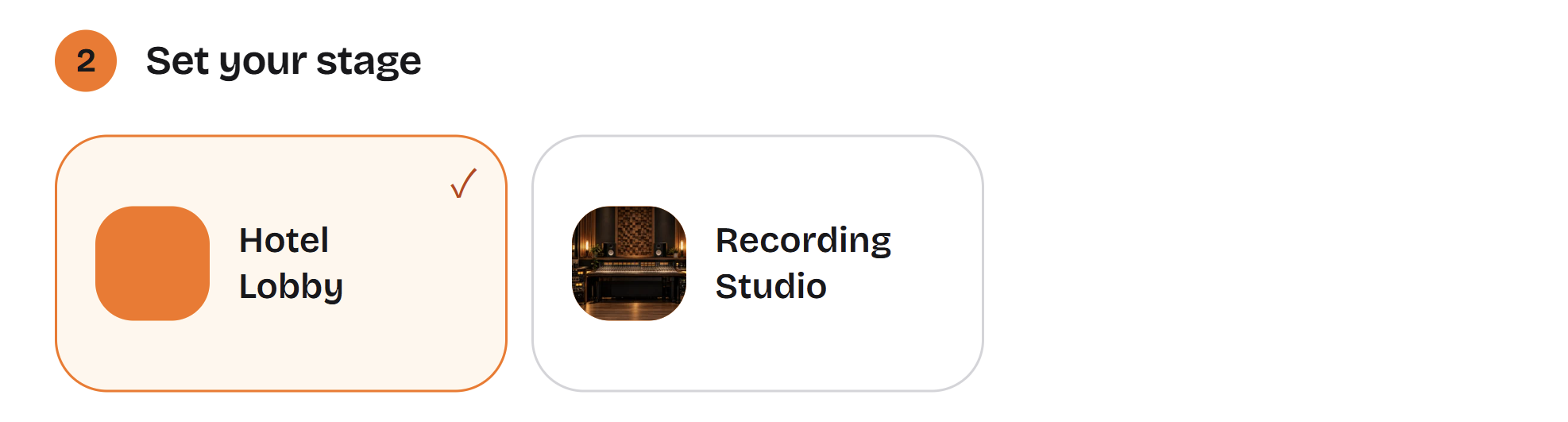
Choose Hotel Lobby if the video is for the Hotel Lobby trend. The orange backdrop is what viewers recognise, so any other stage misses the point. Choose Recording Studio when the trend is not the goal, say a birthday verse or a joke between friends, and you would rather the pair look like they are recording a track.
Step 3: Choose Quality, Length and Format
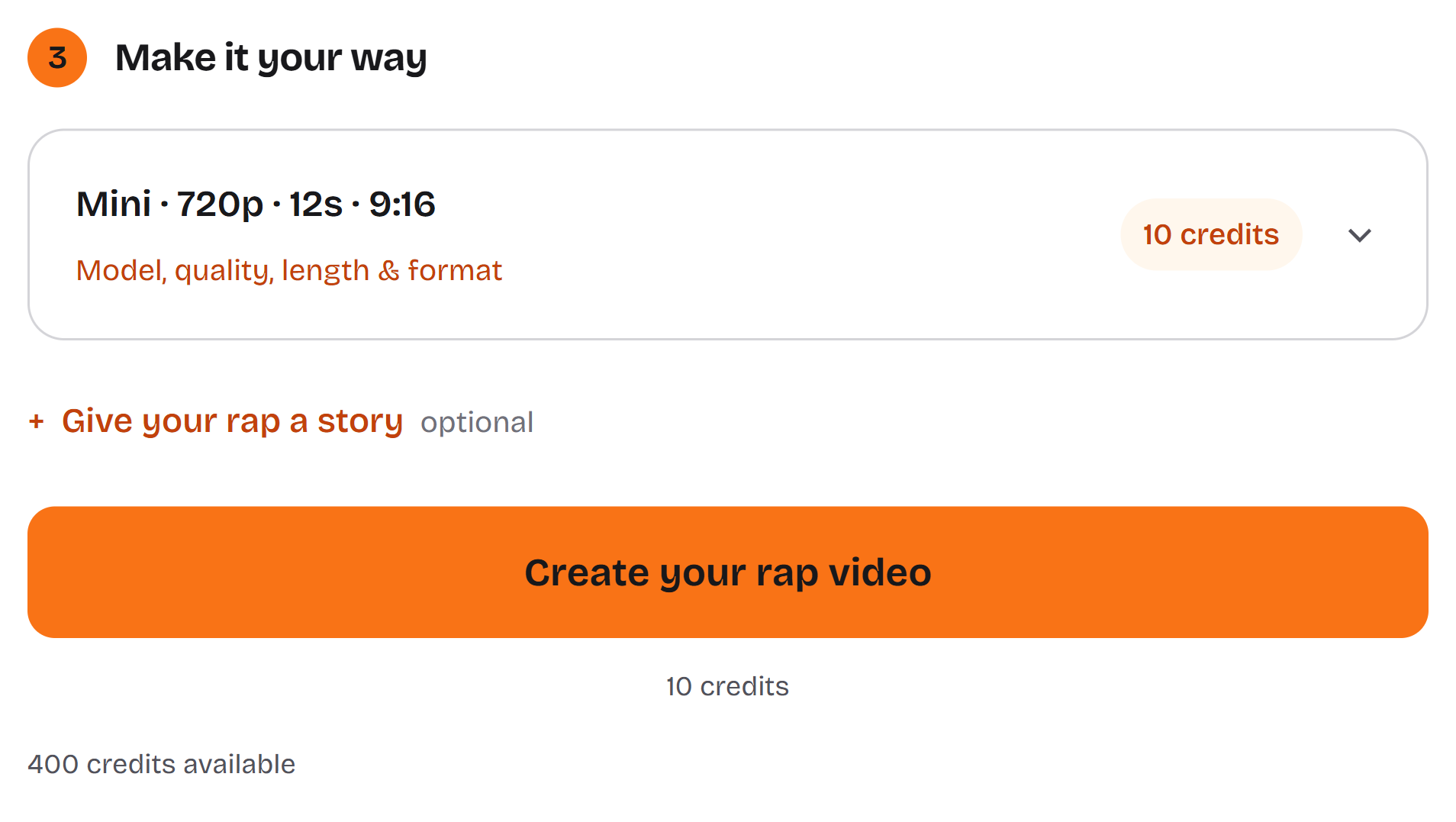
The third block shows a one-line summary, such as "Mini · 720p · 12s · 9:16", with the credit cost beside it. Click it to open the "Model, quality, length & format" panel.
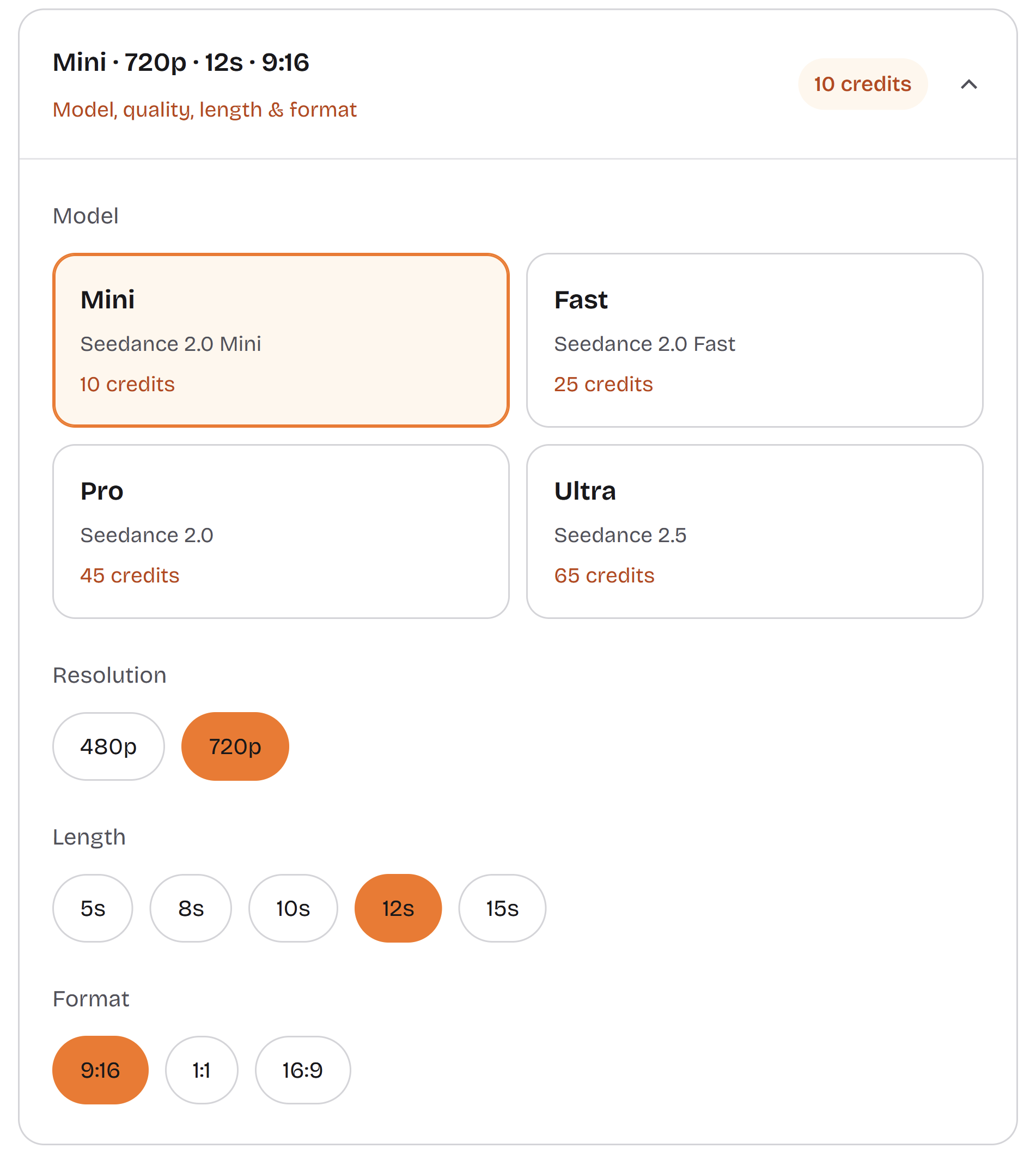
The panel has four groups:
- Model: Mini, Fast, Pro or Ultra. With 720p, 12 seconds and 9:16 selected, the tiles show 10, 25, 45 and 65 credits.
- Resolution: 480p or 720p on the Mini model shown here. Other models can offer more options, so read the panel after you pick one.
- Length: 5, 8, 10, 12 or 15 seconds.
- Format: 9:16, 1:1 or 16:9.
Start with Mini. A first video mostly tells you whether your photos and topic work, and you learn that at 10 credits just as well as at 65. Move up a model once you have photos and a topic worth spending more on.
For length, 12 seconds is the standard choice and gives a two-person verse some room; the shortest options suit a quick clip. Pick 9:16 for TikTok, Reels and Shorts, 16:9 for a laptop or TV screen, and 1:1 for a square feed post. Read the credit figure again after you change anything.
Step 4: Add a Rap Topic
Below the settings is a line that reads "Give your rap a story", tagged optional. Open it and type up to 120 characters.

A good topic is one situation plus one detail the two of you would argue about. Two examples to adapt:
- Birthday: "Dana turns 30 today and still says she's 25. Her best friend kept the receipts and the candles."
- Friend joke: "Two roommates each swear the other one killed the houseplant while both were away."
The topic guides the verse. It is not a lyric sheet, and the tool does not promise to perform your words exactly as typed, so describe the idea instead of writing lines. Leave the box empty and you still get a rap.
Step 5: Sign In and Make Your Video
Generating needs an account. Sign in and return to the AI Rap Duo tool. If your photos or settings are not there any more, add them again. Then check two numbers at the bottom of the form: the credit cost next to the button and, under it, the credits available in your account. If you are short, the tool tells you how many credits the video needs.
When both look right, click Create your rap video. Credits are deducted when you submit and returned if the generation is confirmed failed.
You do not have to watch it happen. The task belongs to your account, so you can leave and come back later.
Step 6: Watch and Download
While the task runs, the tool shows its status, for example "Creating your video", with a Check status button. When it reads "Your video is ready", a player appears with a Download MP4 link.
The same task is listed on the My videos page with its date and status. A finished task has a Watch button, which opens the player and a Download video link. An unfinished one has View status. This is where to look if you closed the page: sign in to the same account and the task is still there.
One rule while you wait: do not submit again. A slow status is not a failure, and a second submit is a second task that costs credits of its own.
On a phone, the file goes wherever your browser and system settings send downloads, and that differs between devices. If you cannot find it, open the browser's downloads list.
How Much Does an AI Rap Video Cost?
The standard video, Mini at 720p and 12 seconds, costs 10 credits. The Single purchase is $4.99 for 10 credits, so one standard video costs $4.99 that way.
Other settings change the cost. At 720p, 12 seconds and 9:16, the panel shows 10 credits for Mini, 25 for Fast, 45 for Pro and 65 for Ultra, and a different length or resolution changes the figure again. The number beside the button before you submit is the one that counts.
There are also monthly plans: Basic at $24.90 for 100 credits, Pro at $44.90 for 300 and Studio at $89.90 for 800. Those are prices for a month of credits, not for one video, so they only make sense if you plan to make several. Prices are as of October 1, 2026; see the current plans before you buy.
Troubleshooting
| Symptom | Check | What to do |
|---|---|---|
| A photo will not load | Is it a JPG, PNG or WebP of 10 MB or less? Does the file open normally elsewhere? | Re-save it in one of those formats under 10 MB, or pick another photo. |
| The people do not look enough like you | Covered faces, sunglasses, heavy filters, extra people, or faces that are small in the frame | Use sharper, front-facing photos with one face per person. The result is a generated likeness, not a guaranteed match. |
| The status has not changed for a while | The status of that same task, in the tool or on My videos | Leave it and check back later. Do not create a second task. |
| You closed the page | Are you signed in to the same account? | Open My videos and use View status or Watch on the original task. |
| The task says Failed | The message on the task and your credit balance | Credits are returned for a confirmed failure. A task that is under review has not failed yet, so wait for the review instead of resubmitting. |
| You cannot find the downloaded file | Is the task ready, and did you click Download MP4 or Download video? | Look in the browser's downloads list. Phones differ in where they save files. |
What to Try Next
Once the first video works, change one thing at a time: a new topic with the same photos, or the same topic on the other stage. That way you can tell what made the difference.
If the trend is why you came, how to do the Hotel Lobby trend walks through that version, using the Hotel Lobby stage.
If what you want is the rap itself, a verse about a person, a birthday or an inside joke, put that in the topic box. Our AI rap generator is built around it.
If you think of the clip as a short music video to post or send, keep the default 9:16 format. That is how our AI music video generator is set up.